Showing posts with label html. Show all posts

Thursday, July 20, 2017

Desktop notification in browser using JavaScript

In most of the sites have today their own desktop notification system to connect user in a large scale. So how to create a desktop notification for your site. Its very simple to generate a new notification using JavaScript, you have to write hardly 2-3 lines of code. Lets create one to generate desktop notification.

To create a new notification for user you have to follow three steps.
  1. Is the browser supports the notification feature. If not show an appropriate message.
  2. Ask user to allow the notification feature to show.
  3. Create a new notification and a click event to fire.
First lets start with whether the browser is supportable to show notification. For this we will use JavaScript Notification object to do all the operation.
 
if (!Notification) {
    alert('Desktop notifications not available in your browser. Try Chromium.');
    return;
}

 And when the user has opened the site prompt user with an box, saying user to allow the site to show notification. For this use follow code block.

document.addEventListener('DOMContentLoaded', function () {
    if (Notification.permission !== "granted")
        Notification.requestPermission();
});

 Now create a button in the body & by clicking on that button a notification will be shown.

<button onclick="notifyMe()">
    Notify me!
</button>

Now in the script section add the Notify() method and write the following piece of code.

function notifyMe() {
    if (!Notification) {
        alert('Desktop notifications not available in your browser. Try Chromium.');
        return;
    }
 
    if (Notification.permission !== "granted")
        Notification.requestPermission();
    else {
        var notification = new Notification('Notification title', {
            icon: 'https://pbs.twimg.com/profile_images/495133521262825472/wxlvCGWy.jpeg',
            body: "Here is your notification!",
        });
 
        notification.onclick = function () {
            window.open("http://asp-arka.blogspot.in/");
        };
    }
}

Here are the full code.

<html>
<button onclick="notifyMe()">
    Notify me!
</button>
<script>
    // request permission on page load
    document.addEventListener('DOMContentLoaded', function () {
        if (Notification.permission !== "granted")
            Notification.requestPermission();
    });
 
    function notifyMe() {
        if (!Notification) {
            alert('Desktop notifications not available in your browser.');
            return;
        }
 
        if (Notification.permission !== "granted")
            Notification.requestPermission();
        else {
            var notification = new Notification('Notification title', {
                icon: 'https://pbs.twimg.com/profile_images/495133521262825472/wxlvCGWy.jpeg',
                body: "Here is your notification!",
            });
 
            notification.onclick = function () {
                window.open("http://asp-arka.blogspot.in/");
            };
        }
    }
</script>
</html>

Host the file in any server like IIS or Apache to run it. Direct running the file in browser won't work out. Click on the Notify button to get the notification. Change the text and image according to your requirement. 

Tuesday, February 14, 2017

NOSCRIPT tag in HTML

This <noscript> tag defines the enable of javaScript in your browser. To state whether JavaScript is enabled or not in your browser we can use this tag. This works fully independently, means no other JavaScript or JQuery library are not needed to use this facility.


First create a HTML page with JavaScript functionality and a noscript tag.


<!DOCTYPE html>
<html xmlns="http://www.w3.org/1999/xhtml">
<head>
    <title>NoScript Example</title>
</head>
<body>
    <noscript>
        Javascript is either disabled or not supported in your browser.
        Please enable it or use a Javascript enabled browser.
    </noscript>
    <div>
        This is a HTML page.
    </div>
    <script>
        alert('JavaScript is working!');
    </script>
</body>
</html>


Now run the HTML page in browser and HTML content will display followed by a pop up showing "JavaScript is working".


Notice the text within noscript is not showing in the browser. Now disable the JavaScript in browser.
For Chrome go to Advance Settings->Privacy->Content Settings->JavaScript and select "Do not allow any site to run JavaScript". Hit OK and refresh the page.


Now you can see the text within nosript tag and notice no popup will be there as you disabled the JavaScript.


For Mozilla visit this link, and for Internet Explorer visit this link


Browser Dependency:
This HTML tag supports all the front line browsers like,
  • Chrome
  • Android
  • Firefox
  • Firefox Mobile
  • Internet Explorer (IE)
  • IE Phone
  • Opera
  • Opera Mobile
  • Safari
  • Safari Mobile


How to find next focusable item in HTML using JQuery

In this post we will found how to find the next focusable item and focus into that element in HTML using JQuery. Among lots of element sometime its getting necessary to focus on the next element on some ENTER or TAB click in HTML. So, how to do this. Let’s find out.


First create a HTML page with few dummy elements.

<div id="div1">
    1.<input type="text" />
    2.<input type="text" />
</div>
<div id="div2">
    3.<input type="text" id="input3" />
    4.<a href="#">Anchor</a>
    5.<input type="text" />
</div>


We have designed a HTML page with different focusable elements (textbox and anchor) and different sections (div1 & div2).


Now as per HTML structure the TAB will go from first text box to last text box. But how programmatically we will find the next focusable item after a certain element.


 var nextTabbable = $("#input3").next(":tabbable").length
                    ? $("#input3").next(":tabbable")
                    : $("#input3").parent().next().find(":tabbable").first();


Using "tabbable" we can find the next focusable or tabbable item in the HTML structure. So  nextTabbable  is the item which is next after "input3" in this structure. Now write your desired code upon that. For more information please visit :tabbable Selector.


How to make a HTML element focusable

Input elements like text box, textarea, button, anchor drop down list(select), list are pre focusable element in HTML. But elements like span, div, label these are not focusable element, as these are not interacting with user directly. These are only use to show output. According to new American Disability Act (ADA) any disabled person can access the website as an able person does. So, in this case we have to make the site totally focusable so that a disable person can operate the whole website using only TAB and ENTER key.


Now in case of focusable items there is no problem, but for other items we can use TabIndex.


Just put tabindex="0" to each and every element of the page which should be focusable. TabIndex="0" implies that the element will be under focusable elements and also the first element of the page. But don't worry a page can have more than one element having tabindex="0". To make manual tabbing you can use tabindex="1", tabindex="2", tabindex="3" and so on.


Now if you are working on an existing project then it’s hard to set all the elements as tabindex="0" so on that case you can do two things.


1. Using Class.
Name those elements, which are need to be focusable, with a class name. Let’s say "focusable" is the class name.


Now on the ready method of you JQuery put the below line to comply.


$('.focusable').prop('tabindex','0');


This line of code will add tabindex property with value zero into those element which has been marked with the class name "focusable". And all the site will be ready to navigate using TAB.


2. Using JQuery selector
If there are lots of elements to be focused then you can use selectors like "div", "label", "span".


$("div, label, span").prop("tabindex","0");


Like this aim can be achieved and in this case all the elements will be under navigation. If you have your own tags used in the page then you can add those too.

Sunday, April 17, 2016

How to prevent F12 in browser

Introduction:

Opening the console log of browser and change element value of a web page is like a headache for the developer. To prevent this situation here is the remedy.

Description:

So how to stop this kind of situation, you could get a message while user is opening the console log and take necessary step or you could prevent user from opening that. We will discuss both the situation in this article one by one.

Getting noticed while opening the console of the browser:

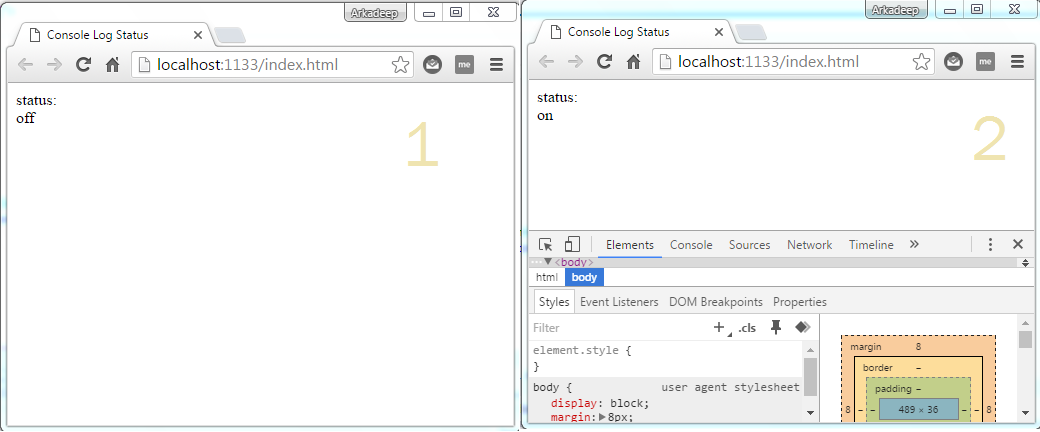
Create a normal HTML page and and add a div to show the status of the development tool box. And write down the code.


<body>
    status: <div id="status"></div>
</body>
 
After that write down the code within the script tag under body section.


<script>
    var checkStatus;

    var element = new Image();
    element.__defineGetter__('id', function () {
        checkStatus = 'on';
    });

    setInterval(function () {
        checkStatus = 'off';
        console.log(element);
        console.clear();
        document.querySelector('#status').innerHTML = checkStatus;
    }, 1000)
</script>


 Output:


Prevent Clicking F12 and Mouse Right Click:

This trick is not like showing status. By showing status you can do all your customization in your code but here in this example of coding user will not be able to click F12 and mouse right click. Lets see how.

Before starting add JQuery into your page. To add it add the bellow script to the top of all the JQuery code.


<script src="https://ajax.googleapis.com/ajax/libs/jquery/2.2.0/jquery.min.js"></script>
 
After that within a script tag write down the  bellow code.


<script>
    $(document).keydown(function (event) {
        if (event.keyCode == 123) {
            return false;
        }
        else if (event.ctrlKey && event.shiftKey && event.keyCode == 73) {
            return false;
        }
    });

    $(document).on("contextmenu", function (e) {
        e.preventDefault();
    });
</script>


As you can see we have used the Key code to detect the clicking of buttons and mouse. Here 123 stands for F12 and 73 for I key. To know more visit https://msdn.microsoft.com/en-us/library/aa243025(v=vs.60).aspx.

Run both the examples and enjoy.


Popular Posts

Pageviews